
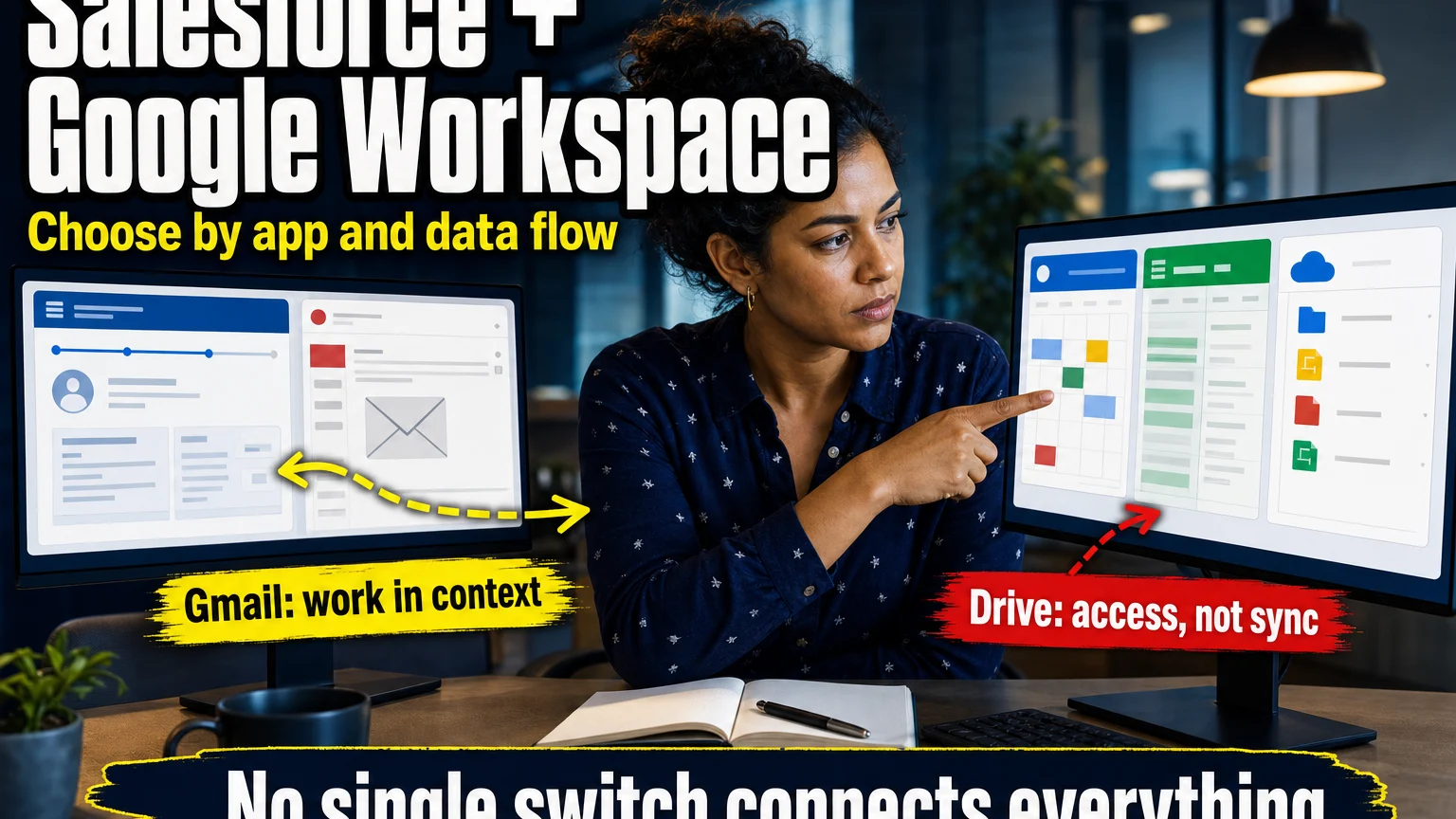

Yes, Salesforce integrates with Google Workspace, but there is an important detail that gets lost in many older explanations: there is no single switch that connects Salesforce to every Google Workspace application in exactly the same way. Gmail has a Salesforce integration, email and calendar activity can be handled through Einstein Activity Capture, Google Contacts can sync through the same activity-capture framework, Google Drive can be accessed through Files Connect, and Google Sheets has a separate Google-developed Salesforce Connector.
Google has also added a newer route through Gemini in Gmail. Eligible Workspace users can connect Salesforce to Gemini so they can find Salesforce contacts, leads, accounts and opportunities while working in Gmail, which creates a very different experience from ordinary email logging. Google’s current Salesforce for Gemini integration in Gmail
The practical answer, then, is not simply “Salesforce works with Google Workspace.” A better question is which Google Workspace application you need to connect, what data should move, and whether you want to view information, synchronize it, or change Salesforce records from the Google side. Once those three decisions are separated, the integration options become much easier to understand.
If your main requirement is spreadsheets, the detailed Salesforce Data Connector for Google Sheets guide covers importing reports, SOQL, refreshing data and controlled Salesforce write-back. If the requirement involves customer calls rather than ordinary Workspace productivity, the Salesforce and Google Contact Center AI integration guide covers that architecture separately.
What Actually Connects Between Salesforce and Google Workspace?
Salesforce and Google Workspace can work together across several different layers, and those layers should not be treated as interchangeable. An employee who wants Salesforce customer context visible inside Gmail has a different requirement from a sales manager who wants Calendar events synchronized, while an analyst importing Salesforce opportunities into Google Sheets is solving a third problem entirely.
That distinction matters because different integrations have different ownership, licensing, permissions and behavior. Some primarily expose Salesforce information inside a Google application, some synchronize information between platforms, and some can modify Salesforce data. Treating all of them as “Google Workspace integration” without explaining those differences is how configuration mistakes begin.
| Google Workspace area | Main Salesforce route | What it is good for | Important distinction |
|---|---|---|---|
| Gmail | Salesforce Gmail Integration | Viewing Salesforce records, creating or modifying records, and relating email to CRM activity | The Gmail panel itself is different from automatic activity capture |
| Gmail + Calendar | Einstein Activity Capture | Capturing email activity and synchronizing calendar events | Sync direction and timing depend on the configuration |
| Google Contacts | Einstein Activity Capture contact sync | Keeping selected Google and Salesforce contacts aligned | Google contact labels and required fields can affect which contacts sync |
| Google Drive | Salesforce Files Connect | Searching, accessing and sharing external Google Drive files from Salesforce | This should not be confused with copying the entire Drive into Salesforce |
| Google Sheets | Google Salesforce Connector | Reports, SOQL imports, refreshes and controlled record write-back | Spreadsheet write-back can change real Salesforce records |
| Google Docs | Google Salesforce Connector + Drive-based file access | Salesforce smart chips and access to supported Drive content | Docs integration is different from CRM record synchronization |
| Gemini in Gmail | Salesforce for Gemini integration | Finding Salesforce context and acting on sales inquiries from Gmail | This is an AI-assisted access layer, not a replacement for CRM synchronization |
The easiest mistake is choosing an integration by product name rather than by job. If the problem is email logging, begin with Gmail integration and activity capture. If the problem is spreadsheet analysis, begin with Sheets; if employees need external documents inside Salesforce, begin with Files Connect.
How Does Salesforce Integrate With Gmail?
Salesforce has a current Gmail integration that places Salesforce information directly alongside a user’s Gmail workflow. Salesforce’s current Gmail integration setup documentation says the integration can let users see, create and modify Salesforce records from Gmail, while administrators can customize email application panes for different groups of sales users.
The current setup is more specific than the old idea of a generic “Gmail connector.” Salesforce documents an administrator-side configuration in Salesforce and a client-side setup using the Salesforce extension from the Chrome Web Store. Salesforce’s current instructions for getting the Gmail Integration show that the extension connects the user’s Salesforce account and adds the Salesforce experience while working in Gmail.
That means the old description of a free connector “built into Gmail” that requires no local installation should not remain on this page. The existing article currently makes exactly that claim and then mixes it with Workato, which gives readers the impression that Salesforce’s native Gmail experience and third-party workflow automation are one product. The rewrite should keep those concepts separate.
What Can a User Do From Gmail?
A salesperson can work with Salesforce information without switching constantly between Gmail and the CRM. Depending on the organization’s setup and enabled features, the Salesforce pane can expose related records and let a user relate an email to Salesforce activity, while additional Inbox or Einstein functionality can extend the workflow.
This matters most when Salesforce adoption is being damaged by context switching. If salespeople read the customer’s message in Gmail, open Salesforce in another tab, search for the contact, find the opportunity, manually record the message, and return to Gmail, the process contains enough friction that some activity will eventually be skipped. Bringing the customer context into the inbox reduces that unnecessary movement.
The integration still needs a clear data rule. Seeing a Salesforce record inside Gmail does not mean every email should become a permanent CRM activity, and automatic capture should be designed around privacy, retention and reporting needs rather than enabled simply because the feature exists.
What Is the Difference Between Gmail Integration and Einstein Activity Capture?
The Gmail Integration is primarily the working surface that gives users access to Salesforce while they are inside Gmail. Einstein Activity Capture is the broader synchronization and capture layer that connects Salesforce with Google email, calendar and contact activity. Salesforce describes Einstein Activity Capture as a way to connect a Google or Microsoft account to Salesforce and associate email and calendar activity with relevant contacts, leads and opportunities.
Those two layers can work together, but they answer different questions. The Gmail pane helps a person work with CRM context in the inbox, while activity capture can reduce manual entry by moving or associating activity behind the scenes. Salesforce also allows Einstein Activity Capture to be used with Inbox and other sales capabilities, so purchasing or enabling one feature should not be assumed to produce every email productivity feature automatically.
This separation is useful during troubleshooting. When the Salesforce side panel fails to appear in Gmail, investigate the Gmail Integration and browser setup. When the panel works but emails, events or contacts are not synchronizing as expected, the activity-capture configuration is the more likely place to investigate.
Does Salesforce Integrate With Google Calendar?
Yes. Einstein Activity Capture supports event synchronization between Salesforce and connected Google accounts, although the direction matters. Salesforce’s current explanation of how Einstein Activity Capture works with Google events says administrators can configure Google-to-Salesforce, Salesforce-to-Google, or bidirectional event behavior.
I would not describe that as instant calendar mirroring. Salesforce states that Google-to-Salesforce event changes are typically synchronized quickly but are not guaranteed to be real time, while changes moving from Salesforce toward Google can take longer. For time-sensitive scheduling, employees should understand which calendar is supposed to be the operational source rather than assuming every edit appears everywhere immediately.
There is also a useful edge case around recurring events. Salesforce’s current documentation indicates that recurring event-series behavior can differ depending on the configured synchronization direction. That is exactly the kind of limitation worth testing before a sales organization makes Calendar synchronization part of a company-wide scheduling process.
Which Calendar Should Be the Source of Truth?
For a company already operating in Google Workspace all day, I would usually make Google Calendar the place where employees schedule and modify normal meetings, then allow Salesforce to receive the relevant activity. This creates a simple behavioral rule for employees because they continue using the calendar interface they already know.
A bidirectional setup can be appropriate when users genuinely create meetings from both environments. It also creates a larger possibility for conflicting edits, duplicate expectations and uncertainty about where a meeting should be corrected. A two-way capability should therefore solve a real workflow rather than being selected because “two-way” sounds more complete.
The system design should be explained in employee language. “Schedule customer meetings in Google Calendar; Salesforce receives the relationship history” is easier to follow than a long technical explanation of API synchronization.
Does Salesforce Sync With Google Contacts?
Yes, Google Contacts can participate in Salesforce contact synchronization through Einstein Activity Capture when contact sync is configured. Salesforce’s current Google contact-sync preparation guidance explains that Google Contacts selected for synchronization use a Salesforce Sync group, and that the contact data needs to meet specific field and label requirements.
This is one area where a technically connected account can still produce confusing results. Salesforce’s recent support guidance says Google contact synchronization can depend on details such as the Work label on the primary email address, while the contact must also satisfy the configured synchronization criteria. Current Google Contact Sync guidance for Einstein Activity Capture explains that contacts with other email labels can be skipped.
I would therefore test contact synchronization with a small group before enabling it broadly. Contacts are more difficult to clean up than calendar events because duplicates, personal contacts, shared addresses and incomplete CRM records can quickly contaminate the customer database. Decide which direction owns changes and which Google contacts are genuinely business records before the first bulk synchronization.
Can Salesforce Access Google Drive?
Yes. Salesforce Files Connect can expose external content from Google Drive so authorized Salesforce users can access, search and share supported external files without manually uploading every document into Salesforce. Salesforce’s current Files Connect documentation specifically includes Google Drive and says Salesforce supports Google documents, spreadsheets, presentations and drawings through the external data-source configuration.
This is very different from saying Salesforce “syncs with Google Drive.” Files Connect can point Salesforce users toward content that remains stored in the external system, and administrators decide how authentication and access should work. In some configurations Salesforce can store a copy, while reference-based access keeps the external document in its original location and expects the user to have permission there.
That distinction matters for document governance. If a contract belongs in Drive and Salesforce merely needs to help a salesperson find it from an Account or customer workflow, a reference-based model can preserve Drive as the file authority. If the organization starts copying every document into both systems, version control and permission questions become much harder.
Does Files Connect Work With Google Shared Drives?
This is a significant limitation to check before choosing Files Connect. Salesforce’s current Files Connect FAQ for Google Drive states that Google Drive Shared Drives are not currently supported by Files Connect and that the Google connection is limited to a user’s personal My Drive.
That can change the architecture for organizations that deliberately keep business documents in Shared Drives rather than employee-owned My Drive locations. A feature can therefore be technically “Google Drive compatible” while still failing the organization’s real document-governance requirement.
Check where your files actually live before building the integration. A company whose important sales documents reside almost entirely in Shared Drives should not design the whole document experience from a feature description that simply says “supports Google Drive.”
How Does Salesforce Work With Google Sheets?
Google maintains a Salesforce Connector for Google Sheets that is much more capable than a basic export button. The current Google Salesforce Connector listing says it can pull Salesforce reports, import records through a custom query or SOQL, insert or update changes from the sheet back into Salesforce, and refresh imported data manually or on a schedule.
That makes Sheets useful for reporting, reconciliation, controlled bulk editing and analysis. It also makes the integration more sensitive than a normal CSV export because an authorized user can potentially change Salesforce records from a spreadsheet. The spreadsheet should therefore be permissioned according to what it can do, rather than according to the assumption that “it is only a report.”
The full setup and safety workflow belongs on the dedicated Salesforce Data Connector for Google Sheets page. This broader Workspace page should explain where Sheets fits, then send readers to the narrower guide when they are ready to import, query, update or refresh data.
Can Salesforce Work With Google Docs?
There are two useful ways to think about Google Docs. First, documents stored in Google Drive can be part of the Files Connect experience because Salesforce supports Google documents among the external file types it can expose. Second, Google’s current Salesforce Connector listing says Salesforce URLs can be converted into smart chips in Google Docs, which gives users a more contextual way to work with Salesforce references inside a document. Google’s current Salesforce Connector for Sheets and Docs
That is much more precise than the older instructions that told readers to create an app in the Google Admin Console and follow a generic “Setup → Create → Apps → Cloud → App Integrations” path. Those instructions appear in the old content but are not the current workflow I would publish.
A Docs integration should also be judged by what people are trying to accomplish. If a team simply needs a proposal stored in Drive and reachable from Salesforce, Files Connect may be enough. If the team wants CRM context visible inside a collaborative document, smart-chip functionality becomes more interesting.
What Is Salesforce for Gemini in Gmail?
This is one of the most important additions to the modern version of this article because it changes what “Salesforce and Google Workspace integration” can mean. Google now documents a Salesforce integration for Gemini in Gmail that can retrieve Salesforce information while the user is working with email, including contacts, leads, accounts and opportunities. Google’s Salesforce for Gemini integration instructions
For example, Gemini can help a user find the Salesforce opportunity or contact connected with an email conversation. Google also describes a sales-inquiry prompt that can appear when Gmail detects a potential customer message, and users can invoke Salesforce in the Gemini side panel to retrieve relevant CRM context.
This is an AI-assisted access layer rather than a substitute for Gmail Integration, Einstein Activity Capture or Google Sheets synchronization. Gemini can help a person find and work with Salesforce information, while the other integrations still determine how emails, events, contacts, files and spreadsheet data are actually stored or synchronized.
Who Can Use the Salesforce Integration With Gemini?
Google says the Salesforce integration requires an eligible Google Workspace subscription and organizational access approved by the Salesforce administrator. The current experience is also subject to product and language availability, so the fact that one employee has Gemini does not automatically mean every employee can use Salesforce through it.
There are practical limitations as well. Google notes that encrypted Salesforce fields cannot be searched through this integration, and complicated Salesforce validation rules can sometimes force the user to finish a task directly in Salesforce instead of completing it entirely from Gmail.
That is a healthy boundary rather than a defect. AI can reduce the effort required to find and use CRM context, but Salesforce should still enforce the organization’s real data validation and permission model.
Is Salesforce Inbox Still Relevant With Google Workspace?
Yes, but Salesforce Inbox should be presented as an optional productivity layer rather than as the definition of Google Workspace integration. Salesforce’s current Gmail integration resources describe Inbox alongside Gmail Integration and Einstein Activity Capture, with capabilities such as email tracking, calendar-related productivity features and additional sales workflow support. Salesforce’s current Gmail integration product guidance
The old page places Salesforce Inbox beside Quip Live Apps and a vaguely described Gmail connector without clearly explaining which part actually provides synchronization. That structure makes the reader compare product names when the more useful distinction is between the inbox interface, automatic activity capture and optional productivity functionality.
Start with the workflow before adding Inbox. If employees simply need Salesforce context inside Gmail and basic activity logging, configure that requirement first. Add the extra layer when its scheduling, tracking or productivity capability solves a measurable sales-process problem.
What About Quip Live Apps?
Quip should no longer be the explanation for why Salesforce works with Google Workspace. Quip is part of Salesforce’s collaboration ecosystem, but the present Google integration story is much more directly explained through Gmail Integration, Einstein Activity Capture, Files Connect, Google’s Salesforce Connector and the newer Salesforce connection with Gemini.
The current article says Quip Live Apps made it possible for Salesforce users to “seamlessly integrate Salesforce and Google workspace,” then attributes Google Sheets, Drive and Calendar behavior to that explanation. That is now a poor organizing principle because readers looking for Google Workspace integration need to know which present product controls each Google application.
I would remove that Quip section entirely from the live article. Quip deserves its own explanation when a reader is comparing Salesforce collaboration environments, but it should not sit between a user and the current Gmail, Calendar, Drive or Sheets setup.
Do You Need Workato, Zapier, Make or Another Automation Platform?
Sometimes, but those platforms solve a different problem from the native or vendor-provided connections covered above. Gmail Integration, Einstein Activity Capture, Files Connect and the Google Salesforce Connector already cover several common Salesforce-Workspace requirements without asking the organization to build a separate automation between every product.
An automation platform becomes more useful when the workflow extends beyond the supported behavior. Perhaps a Google Form submission must create a specially structured Salesforce object, a Drive document must trigger a custom approval process, or a Workspace event has to coordinate Salesforce with several other systems. At that point the requirement is workflow orchestration rather than simple product integration.
Avoid introducing middleware by habit. Every additional platform adds credentials, permissions, logs, failure handling, licensing and another team that needs to understand what happens when data stops moving.
Is There One Salesforce Setting That Connects All of Google Workspace?
No, and this is the central idea I would make clear throughout the page. Salesforce and Google Workspace are broad suites made of products that store very different kinds of information, so email, calendar events, contacts, documents and spreadsheet records naturally use different integration mechanisms.
That can initially feel fragmented, but it is also safer. A user who needs Google Drive access does not necessarily need permission to write Salesforce records from Sheets, while a salesperson who needs CRM context inside Gmail does not automatically need all of the organization’s Google Contacts synchronized.
Design access by business need. One universal connector with broad permissions would often be less desirable than several narrower integrations with clearly defined responsibilities.
Which Integration Should You Set Up First?
Start with the place where employees lose the most time. For most sales organizations that live in Google Workspace, this is usually Gmail and Calendar because customer communication and meeting scheduling happen throughout the day. Giving those interactions reliable Salesforce context can improve CRM completeness without changing the employee’s whole working environment.
Sheets should come next when reporting, reconciliation or bulk operations create a specific need. Drive deserves priority when sales or service teams constantly search for customer documents outside Salesforce. Gemini becomes especially useful for eligible organizations that want employees to retrieve CRM context conversationally while reading and replying to email.
Do not roll out all integrations simultaneously because the vendor logos look compatible. A staged rollout makes it much easier to see whether each integration reduced work, created duplicate data, introduced privacy problems or simply moved complexity somewhere else.
A Practical Salesforce + Google Workspace Setup
For a sales organization primarily using Gmail and Google Calendar, I would begin with Salesforce’s Gmail Integration and Einstein Activity Capture. Administrators should define what users can see from Gmail, what email activity should enter Salesforce, and which direction Calendar events should move before making the configuration available to a larger group.
I would then configure Google Contacts only if the company has a real reason to synchronize contact books. Customer records should not enter the CRM merely because an employee once saved someone’s phone number, so the synchronization group and minimum data requirements deserve explicit ownership.
For documents, decide first whether Google Drive or Salesforce should own the authoritative file. If Drive remains authoritative, use a reference-oriented approach where practical and confirm whether the important files are in supported locations. For reporting and analysis, use Google’s Salesforce Connector in a dedicated Sheet rather than making uncontrolled CSV exports part of the weekly routine.
Finally, evaluate Salesforce for Gemini after the underlying CRM and Workspace connections are clean. An AI layer becomes more useful when the data underneath it is trustworthy and permissions already reflect the organization. Giving employees faster access to confused or duplicated Salesforce data simply lets them encounter the confusion faster.
What Should an Administrator Check Before Connecting Salesforce to Google Workspace?
Permissions should come before convenience. Salesforce administrators, Workspace administrators and security teams should identify which user groups need email access, calendar synchronization, contact synchronization, Drive access, spreadsheet write-back or Gemini access. The same employee rarely needs every capability.
Next, document data ownership. Determine where the authoritative customer record lives, where meetings are normally edited, where documents are stored, and who is allowed to change CRM fields from a spreadsheet. Those decisions reduce the number of situations where two systems contain different answers and nobody knows which one should win.
Then test failure and edge cases. Use duplicate Google Contacts, private calendar events, a changed Drive permission, a spreadsheet row that violates a Salesforce validation rule, and a user whose Workspace access has been revoked. A production integration should have a predictable failure state, not merely a successful demonstration.
What Are the Biggest Risks?
The first risk is excessive synchronization. Automatically capturing everything can feel efficient until personal contacts, irrelevant email activity or private calendar information starts appearing where employees did not expect it. Integration scope should be narrow enough that users understand what data is moving.
The second risk is duplicated authority. A field that can be edited in Salesforce, Sheets and another automation process needs a clear ownership rule or users will eventually overwrite one another. The same problem appears with calendar events when employees do not know which system should be used for time-sensitive changes.
The third risk is permissions drifting apart. A Google Drive file, Salesforce Contact and connected Sheet can all have different sharing rules, even when they refer to the same customer. Integration does not make those permission models identical.
Does Connecting Salesforce to Google Workspace Replace Salesforce?
No. Google Workspace remains the employee productivity environment for email, documents, spreadsheets and collaboration, while Salesforce remains the CRM and business-record environment. The purpose of integration is to reduce the friction between those roles rather than push all customer operations into Gmail or Sheets.
That distinction should guide every implementation choice. A spreadsheet can be an excellent place to analyze Salesforce records, but it becomes dangerous when people start treating it as a second customer database. Gmail can expose CRM context beautifully, but the final customer record still needs to follow Salesforce validation, permissions and ownership.
A successful integration makes the boundary easier for employees to work across without making the boundary disappear.
Should a Small Business Connect Salesforce to Google Workspace?
A small organization can benefit more than a large one if its staff already spends most of the day in Gmail, Calendar and Sheets. Reducing duplicate data entry can matter when one salesperson is also responsible for follow-up, proposals, scheduling and customer administration.
Small businesses should resist connecting everything on day one. Start with the integration that removes the clearest repeated task, measure whether employees actually use it, then expand. This keeps the system understandable and makes licensing decisions easier.
The number of employees is less important than workflow complexity. A five-person team with hundreds of customer emails and heavy spreadsheet reporting can have a stronger integration case than a fifty-person organization using Salesforce only for occasional account records.
Which Salesforce and Google Workspace Integration Would I Choose?
For an ordinary Google Workspace sales team, I would start with Gmail Integration + Einstein Activity Capture because email and calendar activity usually create the largest daily CRM friction. That combination keeps employees close to Gmail while giving Salesforce better relationship context.
I would add Google’s Salesforce Connector for Sheets when analysts or sales operations need reporting, SOQL queries, reconciliation or reviewed bulk changes. I would add Files Connect only after confirming that the organization’s actual Drive storage pattern fits its current limitations, especially the treatment of Shared Drives.
For eligible organizations already using Gemini in Workspace, I would then evaluate the Salesforce for Gemini integration in Gmail. It is promising because it can put CRM retrieval into the same conversational environment employees are increasingly using for email work, but it should sit on top of a well-governed CRM rather than become the foundation of the architecture.
The Better Question Is What Should Move
“Does Salesforce integrate with Google Workspace?” has a simple yes-or-no answer, but the yes is not enough to design the system. Email, events, contacts, documents and CRM records have different lifecycles, owners and consequences when they are changed.
The stronger architecture asks a more specific question for each data type: should this information only be visible, should it synchronize automatically, should users be able to edit it from the other system, or should it remain where it already lives? Those answers determine whether Gmail Integration, Einstein Activity Capture, Files Connect, the Salesforce Connector or Gemini belongs in the workflow.
When each connection has one clear purpose, Salesforce and Google Workspace can complement each other extremely well. When every feature is enabled simply because it exists, the same integration can create duplicate data, uncertain ownership and more administration than it removes.
Frequently Asked Questions
Does Salesforce integrate directly with Gmail?
Yes. Salesforce provides a Gmail Integration that can show Salesforce information while users work in Gmail and can support actions such as relating email to Salesforce records. The current Salesforce setup uses both administrator configuration and the Salesforce extension for the Chrome-based Gmail experience.
Can Salesforce sync with Google Calendar?
Yes. Einstein Activity Capture can synchronize events between Salesforce and connected Google accounts, and administrators can configure the direction of event synchronization. It should not be treated as guaranteed real-time mirroring, so the organization should define which calendar employees use for time-sensitive scheduling changes.
Can Google Contacts sync to Salesforce?
Yes. Einstein Activity Capture supports contact synchronization between Google and Salesforce when the feature is configured. Google Contact groups, labels and required field values can affect which contacts qualify for synchronization, so a small pilot should be tested before broad deployment.
Can Salesforce connect to Google Drive?
Yes. Salesforce Files Connect can let authorized users access and search supported Google Drive content from Salesforce. Current Salesforce documentation says Google Shared Drives are not supported by Files Connect, so organizations that rely heavily on Shared Drives should confirm their document architecture before implementation.
Can Salesforce connect to Google Sheets?
Yes. Google’s Salesforce Connector can import Salesforce reports or custom queries into Google Sheets, refresh data and support insert or update operations back to Salesforce. Because spreadsheet write-back can change real CRM records, access should be restricted according to the purpose of the workbook.
Can Gemini in Gmail access Salesforce?
Yes, for eligible Google Workspace environments where the Salesforce integration has been enabled and authorized. Gemini in Gmail can retrieve Salesforce context such as contacts, leads, accounts and opportunities. It is an AI-assisted access layer and does not replace the underlying email, calendar or CRM synchronization configuration.
Is Salesforce Inbox required to connect Salesforce with Gmail?
No. Salesforce has a Gmail Integration that can be configured separately, while Inbox adds another set of productivity capabilities for organizations that need them. Decide which email, tracking and scheduling features employees require before purchasing or enabling additional functionality.
Is there one connector for all Google Workspace applications?
No. Gmail, Calendar, Contacts, Drive, Sheets and Gemini use different Salesforce or Google integration paths because they handle different data and permissions. This is usually beneficial because administrators can grant only the access required for each workflow rather than using one broad connection for everything.