


myKelly is Kelly’s job-search and employee-resource website, with U.S. routes for finding work and accessing employment information. Start with the task you need to complete: a job application, a profile sign-in and an employee payroll request can lead to different destinations.
For a job search, open the official myKelly site and inspect the current vacancy. For an existing assignment, use the resource specified for that employment task. A successful sign-in tells you that you reached an account; it does not establish that an application was submitted, an assignment was activated or wages were processed.
Where should you start on myKelly US?
Start at the official myKelly website for job browsing or profile access. If you already work on a Kelly assignment, choose the relevant employee resource instead of starting another application. The practical distinction is between discovering an opportunity, managing a candidate profile and completing a task attached to employment.
That distinction matters because a website can provide a gateway without doing all the work inside one account. A payroll-document service, an assignment scheduling system and a candidate profile can sit at different points in the same working relationship. Treat the destination as part of the task, rather than assuming every Kelly-related screen uses the same credentials or contains the same information.
For example, a person who wants a copy of an earnings statement has a document-access problem. Searching job vacancies again cannot solve it. Conversely, a person who has created a profile but has not started an assignment should not expect an earnings statement merely because the profile is complete. The useful first question is, “What result am I trying to obtain?”
The following routes are starting points, not a guarantee that every account will show identical buttons. Interface labels and the resources available to an individual can change. Keep the purpose of the route clear even when its appearance changes: find a vacancy, return to an existing profile, reach an assigned work system or obtain an employment document.
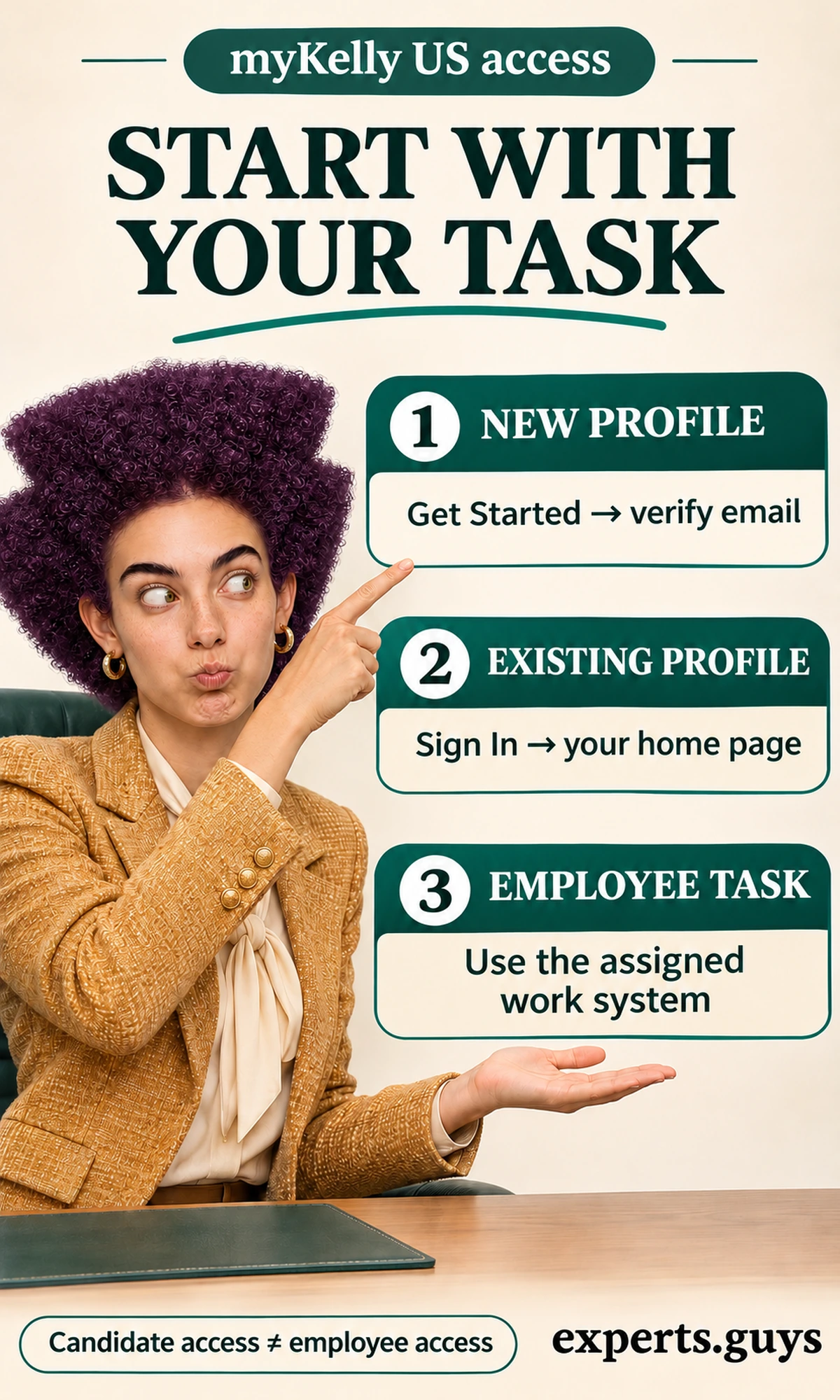
Choose the route by the result you need
Use this table before changing passwords, creating another profile or contacting a recruiter. It separates the first action from the checkpoint that shows whether you reached the right place. If a route does not produce the expected kind of information, reconsider the destination before treating the problem as a broken account.
On narrow screens, swipe horizontally to compare.
| Your task | Start here | Useful checkpoint |
|---|---|---|
| Find a current U.S. vacancy | Official job search and the individual job detail page | You can inspect the role, location and job ID. |
| Return to a candidate profile | Sign In using the original registration method | You reach your existing profile rather than an unfamiliar empty account. |
| Create a first profile | Get Started and the registration instructions | The registration verification step is completed. |
| Enter hours or manage an assignment schedule | The employment resource supplied for the assignment | You reach the relevant time or scheduling system. |
| Obtain a paystub or W-2 | The U.S. ePaystub and eW-2 help route | You reach the earnings-document service linked by Kelly. |
| Resolve a website/profile fault | Official Web Support | You can describe the affected account and failing action. |
Create a profile only when you need a new one
Kelly’s getting-started guidance describes registration through Get Started and an email-verification step. Follow the fields and verification instructions shown in your own registration flow. If you already have an account, return through Sign In instead of creating another profile simply because you cannot immediately find a saved role.
Before registering, make sure you can access the email account you intend to use. That inbox is part of the access path, so an address you no longer control can become an obstacle later. Complete the verification step before assuming registration failed. If an email has not appeared, check the inbox and junk folder associated with the address actually entered, then use the site’s available help rather than repeatedly registering.
A manageable first session ends when the profile is accessible and its essential information is accurate. You do not need to solve every career decision during registration. Focus on the details that affect communication and the task immediately ahead, then return to the vacancy or resource you originally intended to use. A completed profile is useful preparation, but it is not a job offer.
Recover the account that owns the task
Kelly’s Web Support instructions distinguish email-and-password registration from supported social sign-ins. They also describe password recovery for a profile. Use the sign-in method associated with the original account; a payroll-service password should not be assumed to reset when you reset a myKelly profile password.
- Check the destination: identify whether you are opening a profile, an earnings-document service or an assignment system.
- Use the original registration method for that destination.
- If the profile uses email and password, use its own Forgot Password route and the associated inbox.
- Return to the original task after recovery and confirm that the expected account is open.
An illustrative mistake is trying a personal Google sign-in after originally registering with a different email and password. Reaching an empty-looking account would not, by itself, show that the earlier application disappeared. Stop and establish which identity was used before creating another profile or submitting the same application again. The correction is to restore the relationship between the task and its account.
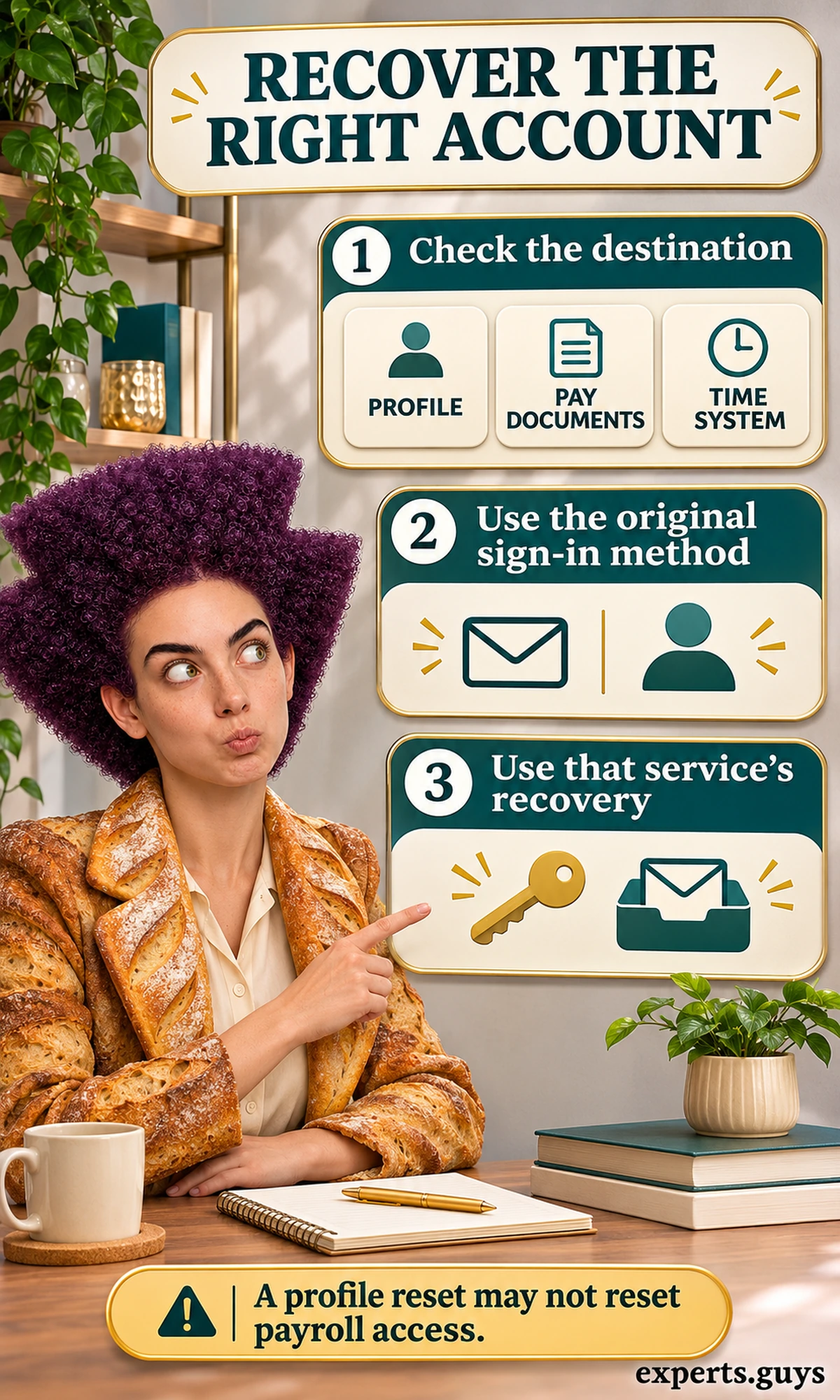
If accessing the original inbox is the obstacle, a password-reset loop will not resolve it. Explain that specific access problem through the official support route. Provide only the identification details the verified process requests; never give someone your password or verification code to “fix” the account. If you need assistance using the interface, someone can help you navigate while you retain control of confidential entries.
How do you find and submit the right job application?
Open a current job detail page, establish whether the vacancy fits your essential requirements and complete its actual application flow. Saving a vacancy or expressing general interest serves a different purpose. The useful outcome is a submission for the intended role, rather than a large collection of saved listings that have never entered an application process.
Search results are an intersection of your conditions and the listings currently available. A narrow search can produce few results because of its wording or location constraints, not necessarily because there is no relevant work. Change search conditions deliberately so that you can tell whether you improved the search or merely allowed jobs you could never accept.
Broaden a search without losing the requirement that matters
Start with a recognizable job function and a location you can realistically consider. If the results are unhelpful, change one adjustable condition while keeping your real constraint fixed. This is an editorial search method, not a promise about the site’s ranking algorithm. Its purpose is to make each change interpretable.
- Search a function you can perform, such as customer service, within an acceptable location.
- Inspect the wording of relevant results rather than relying on the job title alone.
- If there are too few matches, broaden one flexible element, such as an overly specific title.
- Keep a genuine constraint, such as an unworkable commute or required license, intact.
- Open a plausible result and assess the complete description before applying.
Consider an illustrative applicant seeking customer-support work within commuting distance of Austin, Texas. Searching only for “Senior Customer Service Manager” may exclude support roles that use another title. Trying the broader function can reveal different descriptions. However, expanding the geography beyond a possible commute would add results without adding usable choices. More listings are helpful only when they remain feasible.
For remote-role suitability and independent vacancy verification, use the separate Kelly jobs guide. This page keeps the narrower operational question: can you find the intended listing, reach the correct account and establish whether its submission completed? Selecting a safe and suitable opportunity comes before solving a website-access problem.

If you cannot broaden the location, keep it fixed and reconsider title language or an adjacent function for which your existing skills genuinely qualify you. If you cannot change shifts, do not quietly remove that requirement just to create a larger list. An honest smaller set is more useful than applications to jobs you would have to decline immediately.
Read the vacancy as a set of conditions
Kelly’s job-search guidance explains job descriptions and the role of the job ID when discussing a specific vacancy. Keep that identifier attached to your enquiry. Two similar titles can describe different clients, locations or arrangements, so a title alone may be too ambiguous for a useful response.
Read the description for the work itself, its location, the expected schedule and any minimum qualifications. When a term is missing, treat it as unresolved rather than supplying an attractive assumption. A broad salary phrase does not establish your individual offer; an advertised shift does not establish that every other shift is available. The application is an expression of interest in a defined opportunity, not a substitute for confirmed terms.
The separate Kelly Services workforce-service guide explains the broader service relationships. Here, the practical task is narrower: establish which live vacancy you are considering and carry its identifier through the application. That keeps a conversation about a particular job separate from general information about the company.
Distinguish saving, general interest and applying
Kelly’s application guidance distinguishes an application to a particular job from submitting credentials to its Open Interest talent pool. Apply directly when a specific vacancy fits. General interest can introduce your background, but it does not mean that you have applied to every suitable listing you have seen.
On narrow screens, swipe horizontally to compare.
| Action | What it does | What it does not establish |
|---|---|---|
| Save a vacancy | Keeps a job available for later consideration in the relevant profile feature | Submission, recruiter selection or an offer |
| Express general interest | Introduces credentials for broader consideration | An application to one specific advertised job |
| Submit a job application | Sends the required information through that vacancy’s application flow | An interview, completed screening or employment |
| Receive a confirmed next step | Provides a specific instruction or decision to act on | Completion of later requirements that have not yet been satisfied |
Before applying, have the current resume you intend to submit available on the device you are using. Read the questions on that application and answer them accurately. If information has been prefilled, check it rather than assuming that every answer remains current. A saved address, qualification or availability answer may no longer describe your circumstances.
Continue through the required submission step and look for the acknowledgement available in that flow. Where your profile provides an Applied Jobs view, compare the intended role with that view rather than mistaking Saved Jobs for evidence of submission. Do not infer success merely because a button was pressed or a page closed; the checkpoint should relate to the application you meant to send.

For example, an applicant might save an administrative role during a commute and later assume the recruiter has received it. The correction is straightforward: reopen the vacancy, check whether it is still available and complete the application if it fits. If the vacancy has closed, a saved copy is not an alternative route into that opening. Search for a current opportunity instead of repeatedly retrying an unavailable one.
If the flow fails after substantial information has been entered, avoid immediately submitting multiple copies. Check for an acknowledgement and the relevant account view, then describe the failure through the official support route if the outcome remains unclear. A smaller next step is to establish whether a submission exists before re-entering everything. This reduces ambiguity without pretending that every error can be repaired in the browser.
Keep the hiring decision separate from the website state
A visible application is evidence about an administrative step. It does not show where you rank against other applicants, whether a client has made a decision or whether an interview will occur. Use the response and next-step information actually supplied for that vacancy. Avoid treating silence as either a guaranteed rejection or a hidden offer.
Kelly’s getting-hired explanation describes variation between roles and industries. That is why a universal interview count or hiring deadline would be misleading. Ask the responsible recruiter which step remains for your opportunity and whether any action is required from you, rather than assuming another applicant’s timeline applies.
If your underlying aim is a change of occupation, the separate staffing-agency career-change article addresses that broader choice. A portal can help you reach opportunities, but it cannot decide which transition fits your experience and constraints. Make the career choice explicitly, then use the application process to pursue it.
How do employees reach pay documents and time entry?
Use the employment resource for the task: earnings documents belong in the designated document service, while time entry belongs in the system assigned to your work. A paystub displays processed earnings; entering hours is an earlier operational action. Looking at one does not complete the other.
This distinction helps when a problem is described vaguely as “myKelly is not working.” You may be unable to sign in to a document service, unable to submit time, unable to see an expected statement or able to read a statement whose contents you question. Those are different failures. Identify which one occurred before making a change that cannot affect it.
Reach the earnings-document service through Kelly
Use Kelly’s U.S. ePaystub and eW-2 instructions as the starting point for the current document-service link and enrollment help. The page also separates document-access questions from questions about payroll contents. Begin there instead of choosing a third-party “myKelly login” result that asks for employee information.
- Open the official U.S. ePaystub and eW-2 help page.
- Follow its document-service link for the task you need.
- Sign in or follow the enrollment instructions displayed there.
- Select the relevant document and period, then view or download it if available.
- If the document cannot be reached, distinguish an access failure from missing or disputed earnings.
For first-time enrollment, Kelly’s instructions refer to the ALT ID on a paper wage statement. Do not substitute an unrelated identification number or publish that ID in a support discussion. If you do not have the required information, use the enrollment-help route. Establishing access correctly is more useful than repeatedly guessing an identifier in a financial-document system.
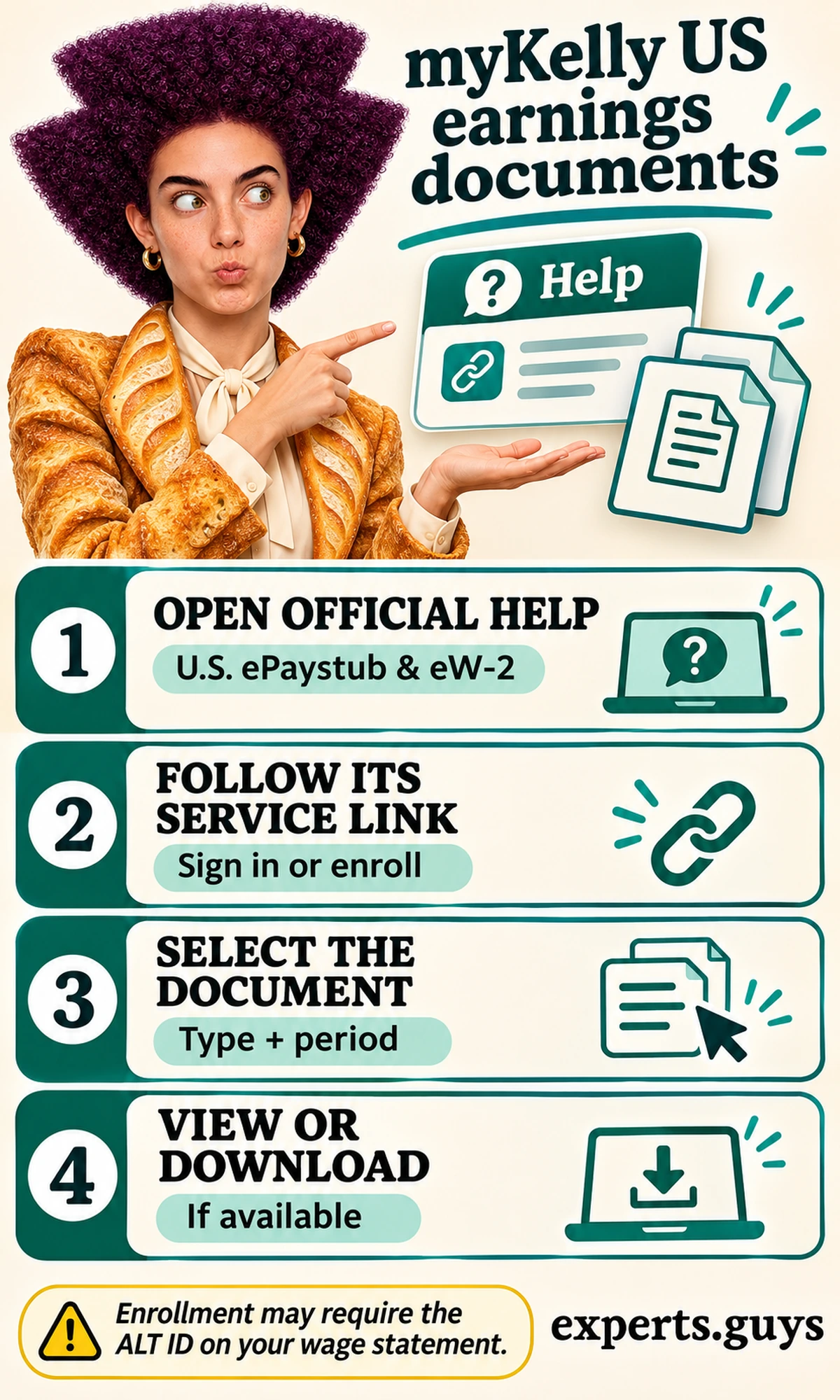
A paystub and a W-2 answer different questions. One concerns a particular wage statement, while the other is an annual tax document. Choose the document that matches your purpose before deciding that information is absent. If you need an older item that is not available in the service, ask through the official route rather than assuming a new enrollment will reconstruct every earlier record.
An illustrative employee might need proof of a particular payment but open the annual tax-document area. The account could be functioning correctly while the chosen document type is wrong. Return to the document selection and identify the relevant period. If that item still cannot be found, the question becomes specific enough for support to investigate: which document, which period and what the service actually displays.
Use a private device where possible when viewing earnings information. If you download a document on a shared device, consider who can access that file after you leave. Signing out of a website does not itself remove a downloaded copy. Keep the document only in a location suitable for your own sensitive employment information; do not attach an entire wage statement when a limited description will answer an initial support question.
Use the time system assigned to the work
Kelly’s U.S. employee-resource guidance identifies Time & Schedule as a route to relevant time-submission resources. Follow the instructions supplied for your assignment. Do not assume that another worker’s scheduling platform, approval process or submission deadline applies to you.
Before the first submission, establish which period you are entering, what action submits the entry and who resolves a correction. Follow the actual assignment instructions for those details. An entry that is still being edited is not the same thing as a submission, and a submission is not a promise that every later processing step has completed. Read the state shown by the assigned system rather than assuming that leaving the page finishes the task.
If you notice a mistake, use the correction process supplied for that assignment and raise the specific discrepancy promptly. Do not duplicate hours to compensate for an earlier problem or alter a later entry to make the totals look right. That would obscure what happened. Keep the question attached to the affected work period so the responsible team can establish the correct adjustment.
For an assignment without clear time-entry instructions, ask the representative to identify the authorized system and deadline before relying on a guessed portal. If access is the immediate barrier, say that directly. “I cannot reach the assigned time system for this work period” is a more useful starting point than asking a payroll-document help desk to restore an unrelated profile.

Route the problem to the team that can change it
Treat the following table as a classification aid. It does not establish the cause of a payroll issue, confirm a deadline or determine what anyone is owed. It helps separate technical access, time-entry administration and questions about a document’s contents so that the first enquiry can be directed usefully.
On narrow screens, swipe horizontally to compare.
| What you observe | Problem to describe | Appropriate starting route |
|---|---|---|
| Cannot open the candidate profile | Profile sign-in or web-function failure | Official myKelly Web Support |
| Cannot enroll in or open earnings documents | Document-service access failure | Help identified on the U.S. ePaystub/eW-2 page |
| Can read a statement but question the contents | Payroll-content discrepancy for a named period | Employee Service Center through current official guidance |
| Cannot submit or correct assignment hours | Assigned time-system or period-specific issue | Assignment instructions and the responsible Kelly representative |
| Expected employee resources are absent | Account/assignment relationship needs clarification | Official support with the affected account and assignment context |
The strongest enquiry states the observable failure without guessing the internal cause. For example: “The document service opens, but I cannot find the wage statement for this period” is different from “The payroll system lost my money.” The first gives a team something concrete to check; the second assumes both a system failure and its financial consequence before either has been established.
What should you do when the next step is unclear?
Identify the last step that you can actually confirm, then ask about the next unresolved step. This avoids treating a candidate-profile problem as an employment decision or a missing employee resource as proof that a role has ended. The aim is to locate the break in the process without inventing an explanation for it.
Follow the last confirmed event
Think of the process as separate checkpoints: an application is submitted, a hiring decision is communicated, employment requirements are completed, an assignment begins and its work is administered. These checkpoints are a conceptual explanation, not a required sequence of labels in the website. The confirmation relevant to one stage does not automatically prove completion of the next.
An illustrative new worker might have completed onboarding instructions but still lack an expected time-entry route. Creating another candidate profile would not establish the missing relationship. The useful enquiry identifies the existing account, the assignment context and the missing resource, then asks which action remains. Keep confidential identifiers within the verified support channel and supply only what that process requests.
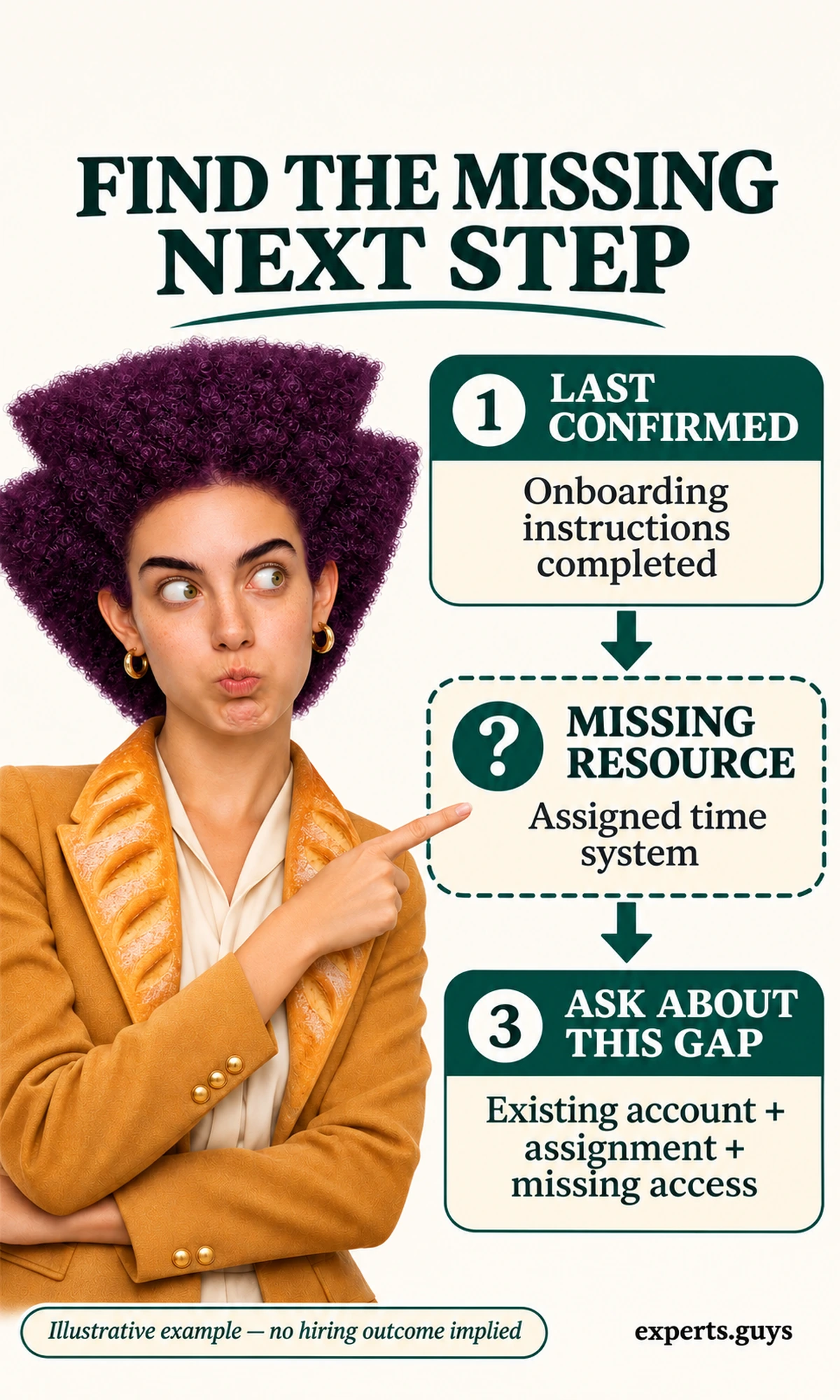
Another applicant might have submitted credentials and then received no further instruction. That person has an application-status question, rather than an employee-access problem. Ask about the named vacancy and whether an action is outstanding. Do not start entering employment or banking information into an unrelated form simply to make the account look more complete.
This method also defines a stopping point. Once you know the responsible destination and the next required action, complete that action or wait for the response the team has specified. Repeatedly changing settings across unrelated systems can create extra uncertainty. A useful resolution is a clear operational next step; it need not be an immediate hiring or payroll outcome.
Use official help with a focused question
The official contact page is a starting point when you cannot determine the right route. Describe your task, the affected destination and what happens when you try it. If a recruiter has already been assigned to the opportunity, keep vacancy-specific questions with that contact rather than sending the same general enquiry to several unrelated desks.
For a technical issue, the helpful facts are the action attempted and the visible failure. For an employment-process issue, they are the opportunity or assignment and the unresolved step. For an earnings-document question, they are the document type and period. You do not need a pen-and-paper log to make that distinction, and you should not paste passwords, verification codes or full financial documents into an ordinary contact message.
A concise verbal version can be enough: “I can sign in to my profile, but the assigned time-entry resource is unavailable. Which team should restore access for this assignment?” This wording distinguishes successful profile access from the failing work task. It also makes room for support to correct your understanding without having to undo a speculative diagnosis of the problem.
Keep unexpected requests separate from routine support
Kelly’s recruitment-fraud guidance warns about upfront payment requests and attempts to obtain sensitive information through unverified contact. A familiar company name does not authenticate a message. Pause an unexpected request and use an independently reached official contact route before proceeding.
Legitimate employment administration can require sensitive information through an authorized process, so the practical boundary is verification and purpose. Do not send account credentials or money because an unsolicited message says a job, wage payment or account will otherwise be withheld. Resolving an access problem should not require trusting the same unknown sender who introduced it.
Frequently asked questions
Can myKelly registration replace an assignment’s onboarding instructions?
No. Registration provides access to a profile. Complete the employment steps actually supplied for the assignment through the authorized process. If an instruction refers to a resource you cannot reach, ask about that missing access rather than assuming a new candidate registration will complete onboarding.
Should I create another profile if an application appears missing?
First establish which account and sign-in method you used, and whether you are viewing saved or applied jobs. An empty view alone does not establish deletion. Recover the original account or ask official support about the specific submission before creating duplicates.
Does a closed listing mean my earlier submission was invalid?
No. A vacancy becoming unavailable and an earlier application being received are different events. Check the acknowledgement or information available for your submission, then ask about that job ID if clarification is needed. Do not assume the listing’s disappearance supplies a hiring decision.
Can an independent guide recover my account for me?
No. Use the official recovery and support processes for the specific service. Do not give a third-party guide your password, verification code, Social Security number or wage-statement identifier. This article explains routes and decisions; it does not access your private employment records.
Choose the next action that matches your task
For a job search, open one current vacancy, judge its essential conditions and finish its application flow if it fits. For employment administration, identify the assigned time or earnings-document destination and resolve the specific failing step. Keep the account, the task and the evidence of completion connected; that is more useful than repeating sign-ins across unrelated systems.