
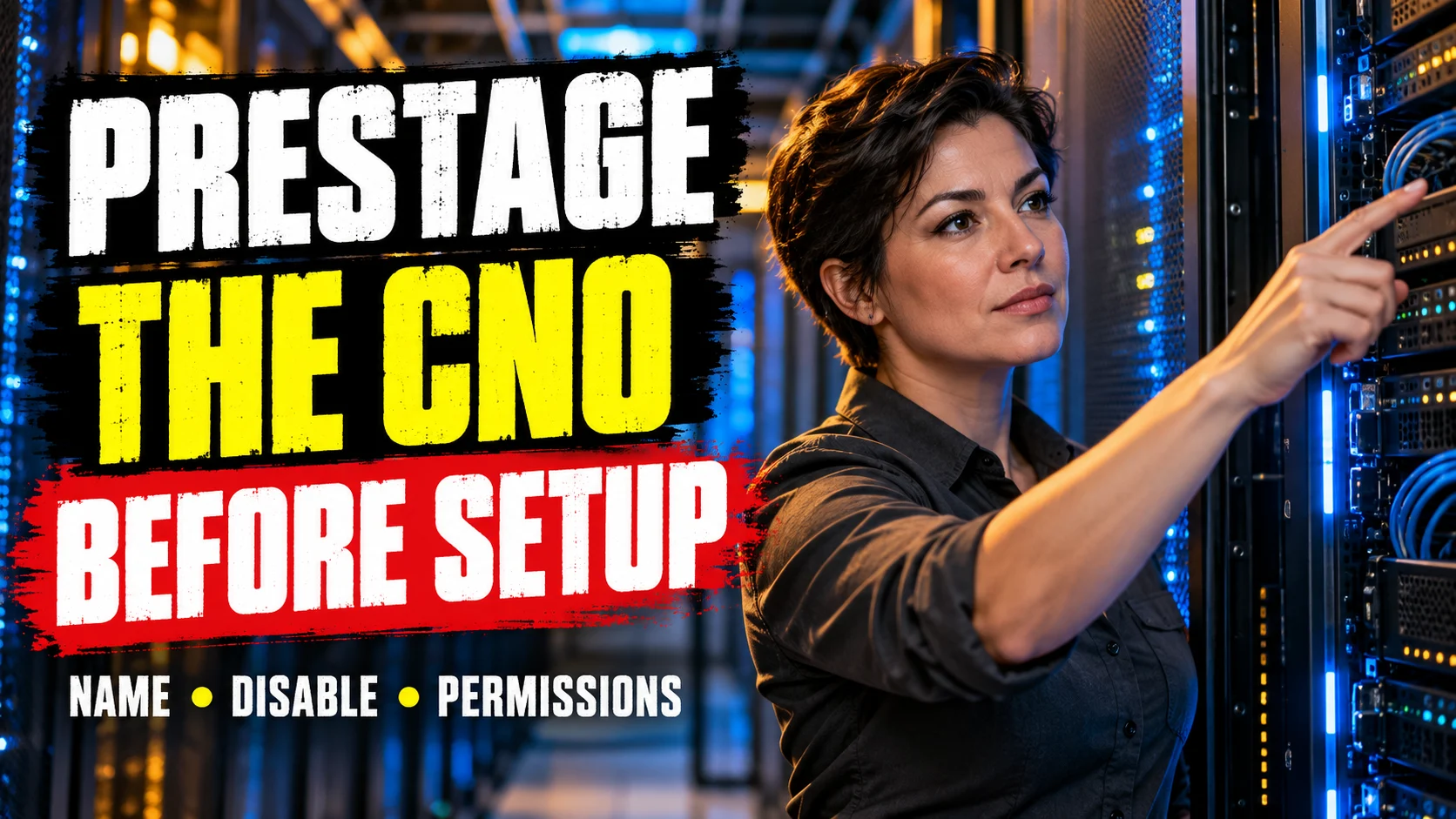

To prestage a Cluster Name Object, create a computer account with the exact intended cluster name, disable it, and grant the cluster installation account Full Control on that object. If clustered roles will need their own Active Directory identities, arrange the CNO’s permissions to create those objects or prestage them separately. Confirm the name, object state, and permissions before you run cluster creation.
What you are preparing-and what you are not
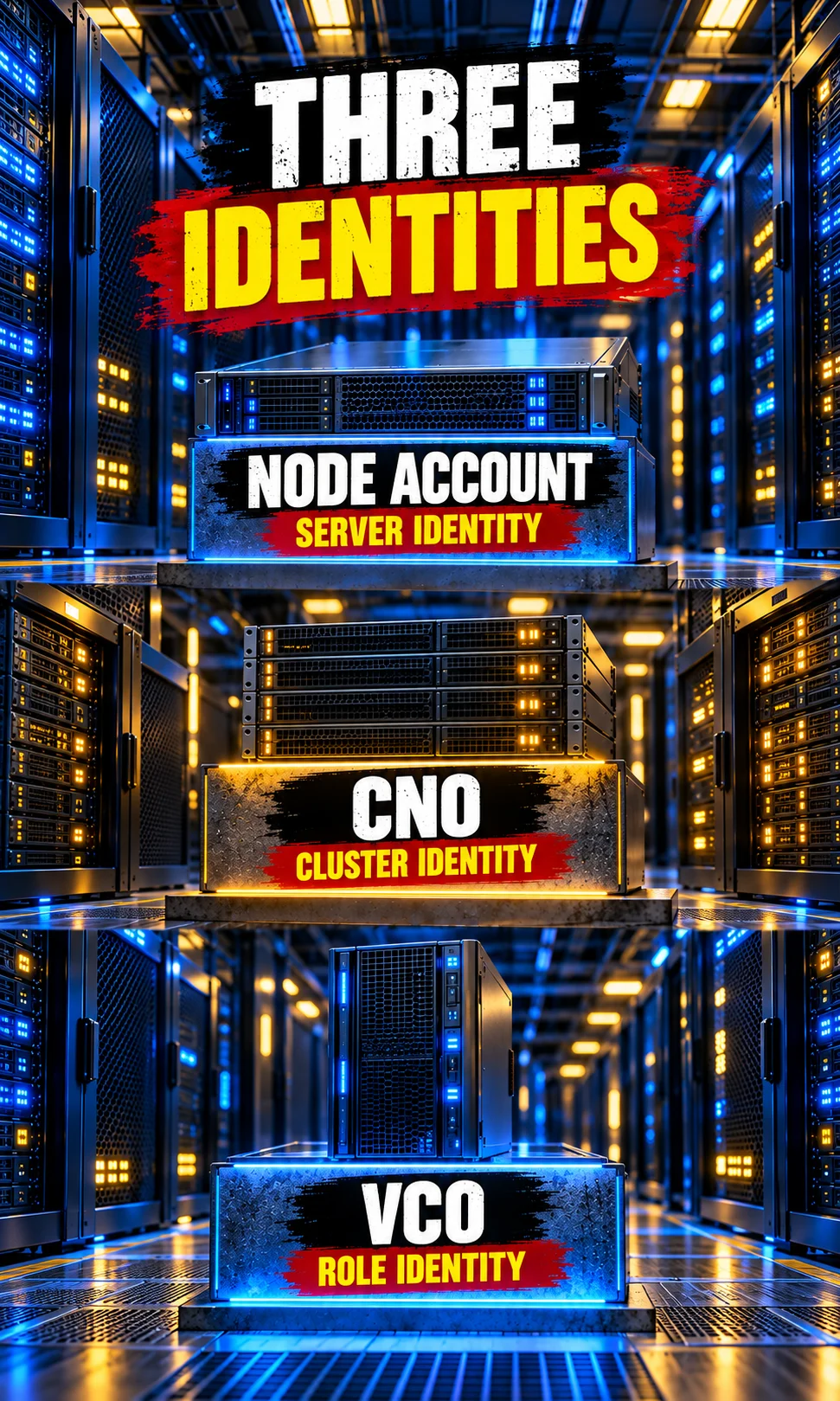
A CNO is the computer identity associated with a conventional domain-integrated cluster’s administrative name. A virtual computer object, or VCO, represents a clustered role with its own client access point, such as a file server name. The nodes retain their own computer accounts; neither a node name nor a role name should be substituted for the cluster name.
This guide addresses Windows Server 2016, 2019, 2022, and 2025 deployments that use an Active Directory and DNS administrative access point. Prestaging is useful when the installation account cannot create computer objects or when your directory team controls object placement. It prepares an identity; it does not install clustering, reserve an IP address, validate storage, or configure a workload.
| Principal | Permission target | Required purpose |
|---|---|---|
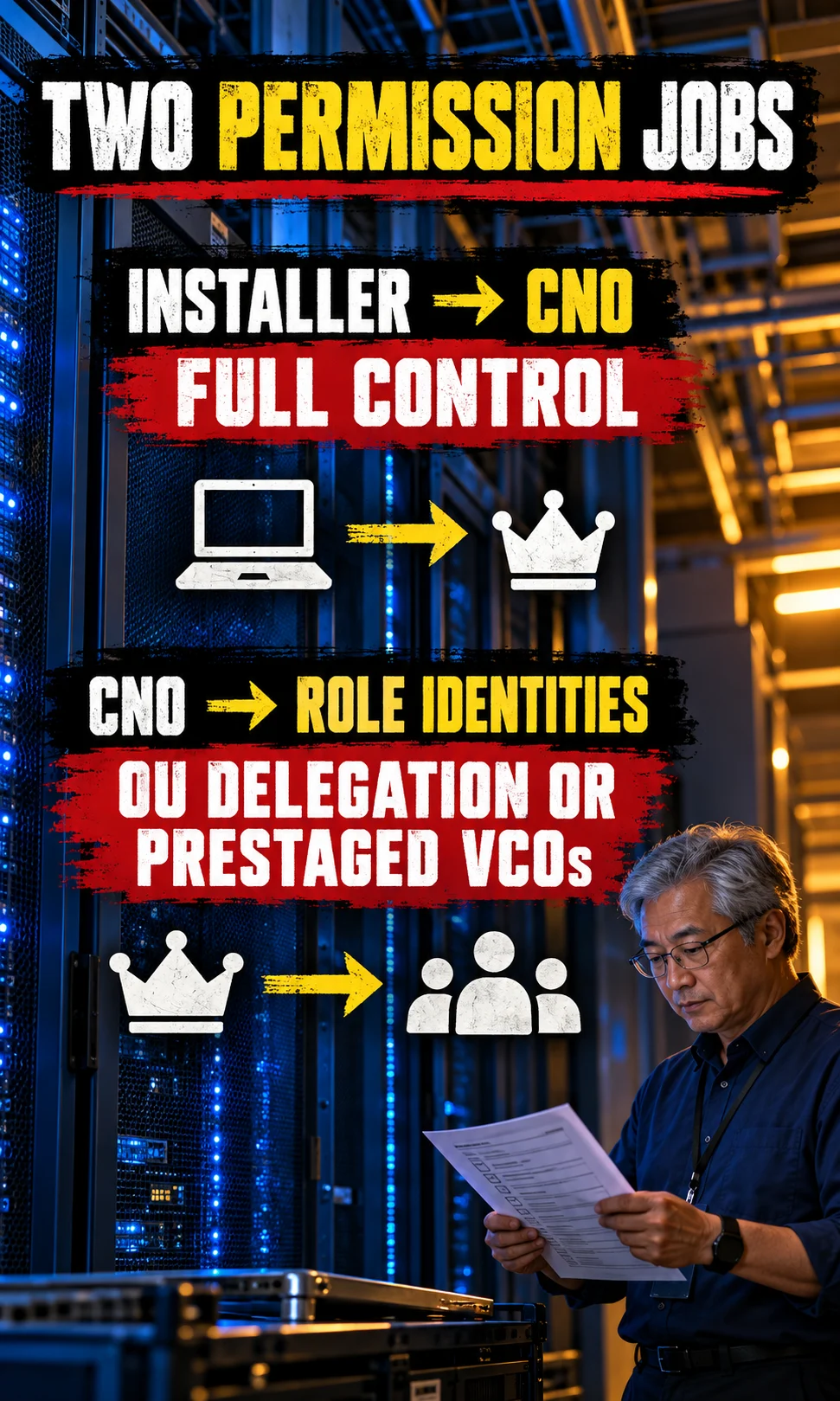
| Directory administrator or delegated AD operator | Chosen OU and new CNO | Create the computer object and configure its security. Domain Admin membership is not the only way to obtain equivalent delegated rights. |
| Cluster installation user or group | Prestaged CNO | Full Control on this object. Local administrator rights on every intended node are a separate requirement. |
CNO computer account, such as CORP\AUS-CL01$ |
OU containing role objects | Create Computer objects for automatic VCO creation. Confirm sufficient read access under your directory policy. |
| CNO computer account | Each separately prestaged VCO | Full Control on that VCO when role identities are provisioned individually. |
Check the deployment prerequisites
Use Active Directory Users and Computers on a management computer with the AD administration components installed. The AD operator needs authorization to create the CNO and edit its permissions; the person creating the cluster needs a domain account with administrator rights on every node. Keep those responsibilities distinct even if one person performs both jobs.
For the example below, the cluster is AUS-CL01 and the nodes are AUS-NODE01 and AUS-NODE02. Use a short, unique name that follows your organization’s computer naming rules; a conservative convention is 1–15 letters, digits, and internal hyphens, with at least one letter. Check both AD and DNS for collisions, and never disable an existing computer simply because its name matches your plan.
Decide whether role identities will be created automatically or provisioned individually. Automatic VCO creation reduces repeated requests to the AD team, while individual prestaging gives that team control over each approved name. Either approach can work; choose it before the first role deployment rather than after the cluster administrative name is already online.
- Agree the exact cluster name and confirm that it belongs to this new deployment.
- Confirm the installation principal and its local administrator rights on every node.
- Approve the target OU and the delegation scope for role objects.
- Confirm DNS and addressing, including who manages secure DNS updates.
- Schedule validation and retain the report with the deployment record.
Prestage the CNO in Active Directory Users and Computers
1. Create the computer object under the approved name
Open Active Directory Users and Computers and enable View → Advanced Features. In the approved OU, choose New → Computer and enter AUS-CL01, replacing it with your agreed cluster name. Verify the selected OU before saving.
2. Protect the object and disable the account
Open the new object’s properties and select Protect object from accidental deletion on the Object tab. Then right-click the computer account and choose Disable Account. The disabled state lets setup identify the account as a prestaged identity rather than an account already in use.
3. Give the installation principal Full Control
On the CNO’s Security tab, add the user or group that will create the cluster and allow Full Control. Verify that the entry names the installation principal, then save. These are the core steps in Microsoft’s CNO prestaging procedure.
Arrange permissions for clustered roles
The installation user’s Full Control on the CNO does not give the CNO permission to create role identities. For automatic VCO creation, open the OU’s advanced security settings, add the CNO as a computer principal, and allow Create Computer objects with the documented scope of this object and all descendant objects. Confirm read access as well; do not assume a custom hardened OU has ordinary defaults.
If OU delegation is prohibited, have the AD team prestage each approved VCO in the CNO’s OU and grant the CNO Full Control on that specific object. Use the role’s client access point name for the VCO, not the cluster administrative name. Follow the role-object procedure instead of copying every CNO step indiscriminately.
Microsoft’s cluster account guidance distinguishes object-level setup rights from directory permissions needed for clustered services. Read All Properties is a directory permission, not a filesystem privilege or a database role. Avoid broad OU Full Control when the required operation is creating computer objects.
PowerShell alternative: create a new disabled CNO
Use Windows PowerShell with the ActiveDirectory module and dsacls.exe available. The example creates a new object only, stops on a name collision, and leaves existing objects untouched. Replace the domain, OU, domain controller, group, and name with approved values before running it.
The New-ADComputer parameters let you set the path, disabled state, and accidental-deletion protection explicitly. Naming the domain controller makes the object creation and subsequent ACL changes easier to trace. The script’s optional OU delegation is off by default so that role permissions remain a deliberate decision.
# New prestaged CNO only. Review values and ACLs before running.
# Windows PowerShell with ActiveDirectory RSAT and dsacls.exe.
$ErrorActionPreference = 'Stop'
Import-Module ActiveDirectory
$clusterName = 'AUS-CL01'
$targetOU = 'OU=Clusters,DC=corp,DC=example,DC=com'
$installer = 'CORP\cluster-builders'
$dc = 'dc01.corp.example.com'
$delegateVCOCreation = $false  # Enable only with approved OU delegation.

if ($clusterName -notmatch '^(?=.{1,15}$)(?=.*[A-Za-z])[A-Za-z0-9]+(?:-[A-Za-z0-9]+)*$') {
    throw 'Use a conservative 1-15 character name with a letter; no edge hyphens.'
}
Get-ADOrganizationalUnit -Identity $targetOU -Server $dc | Out-Null
$sam = $clusterName + '$'
$existing = @(Get-ADComputer -Server $dc -Filter {
    Name -eq $clusterName -or SamAccountName -eq $sam
})
if ($existing.Count -gt 0) {
    throw 'An object already exists. Identify its owner; do not disable or overwrite it.'
}
$cno = New-ADComputer -Name $clusterName -SamAccountName $sam `
    -Path $targetOU -Enabled $false -ProtectedFromAccidentalDeletion $true `
    -Description 'Prestaged CNO; awaiting approved cluster creation' `
    -Server $dc -PassThru

# dsacls adds permissions; never use /N or /S here.
$cnoPath = '\\' + $dc + '\' + $cno.DistinguishedName
& dsacls.exe $cnoPath /G ($installer + ':GA')
if ($LASTEXITCODE -ne 0) {
    throw 'CNO exists but installer grant failed. Inspect and complete permissions before setup.'
}
if ($delegateVCOCreation) {
    $ouPath = '\\' + $dc + '\' + $targetOU
    $principal = 'CORP\' + $sam
    & dsacls.exe $ouPath /I:T /G ($principal + ':CC;computer')
    if ($LASTEXITCODE -ne 0) { throw 'OU computer-create grant failed.' }
    & dsacls.exe $ouPath /I:T /G ($principal + ':RP')
    if ($LASTEXITCODE -ne 0) { throw 'OU read-properties grant failed.' }
}
Get-ADComputer -Identity $cno.DistinguishedName -Server $dc `
    -Properties Enabled,ProtectedFromAccidentalDeletion |
    Select-Object Name,Enabled,DistinguishedName,ProtectedFromAccidentalDeletion
& dsacls.exe $cnoPath
# Wait for AD replication; review effective permissions before cluster creation.
The permission grants use dsacls permission syntax: GA grants Generic All on the CNO, CC;computer allows computer child creation, and RP allows reading properties. The commands add entries rather than replacing the entire ACL. Review the resulting scope and effective permissions; a successful command exit does not prove that a conflicting Deny entry is absent.
Create the cluster using the prestaged identity
Install the Failover Clustering feature and management components on every intended node. Run cluster validation, review its report, and correct failures before creation; do not treat validation as a ceremonial checkbox. The Test-Cluster reference explains test categories and disk behavior.
For an existing production cluster, choose tests with operational impact in mind. Storage validation can involve offline resources, and forcing selected disks or pools into testing can interrupt service. Do not reuse the full predeployment validation command as a routine production troubleshooting step without reviewing the workload and maintenance requirements.
- Open Failover Cluster Manager and run Validate Configuration for the intended nodes.
- After reviewing the report, start Create Cluster under the delegated installation account.
- Add the nodes and enter the exact prestaged name on Access Point for Administering the Cluster.
- For a traditional IP-based administrative access point, supply the reserved address appropriate to the cluster networks.
- Clear Add all eligible storage to the cluster when storage will be configured separately, then complete creation and retain its report.
The GUI and PowerShell paths consume the same intended identity. This example explicitly selects ActiveDirectoryAndDns and uses a reserved static address for a traditional single-subnet administrative access point. The address 192.0.2.50 is documentation-only and must be replaced.
# Run on an approved cluster node as the delegated installation account.
Import-Module FailoverClusters
Test-Cluster -Node 'AUS-NODE01','AUS-NODE02'
# Review the validation report and resolve failures before continuing.
# 192.0.2.50 is a documentation address: replace it with your reserved address.
New-Cluster -Name 'AUS-CL01' -Node 'AUS-NODE01','AUS-NODE02' `
    -AdministrativeAccessPoint ActiveDirectoryAndDns `
    -StaticAddress '192.0.2.50' -NoStorage
In the New-Cluster reference, NoStorage excludes automatic addition of clustered disk resources. It does not remove the workload’s storage requirements or complete quorum configuration. DHCP, multi-subnet addressing, distributed network names, and Azure deployment patterns need their own addressing design.
Verify the result before adding workloads
Check the cluster, node membership, administrative name resource, DNS response, and AD computer identity independently. The cluster resource listing helps you identify the actual resource name rather than assuming an English display label. A cluster object returned by PowerShell does not establish that every dependent resource is online.
Import-Module FailoverClusters
Get-Cluster -Name 'AUS-CL01'
Get-ClusterNode -Cluster 'AUS-CL01'
Get-ClusterResource -Cluster 'AUS-CL01' |
    Where-Object ResourceType -eq 'Network Name' |
    Format-Table Name,State,OwnerGroup
Resolve-DnsName 'AUS-CL01.corp.example.com'
Import-Module ActiveDirectory
Get-ADComputer -Identity 'AUS-CL01' -Properties Enabled,DNSHostName |
    Select-Object Name,Enabled,DNSHostName,DistinguishedName
For this conventional AD-integrated example, expect setup to enable the CNO and bring the administrative name online. Use Get-ADComputer to check the stored identity and compare its DNS hostname and OU with the deployment record. Confirm that DNS returns the expected administrative address, not an unrelated stale record.
When the Cluster Name resource will not come online
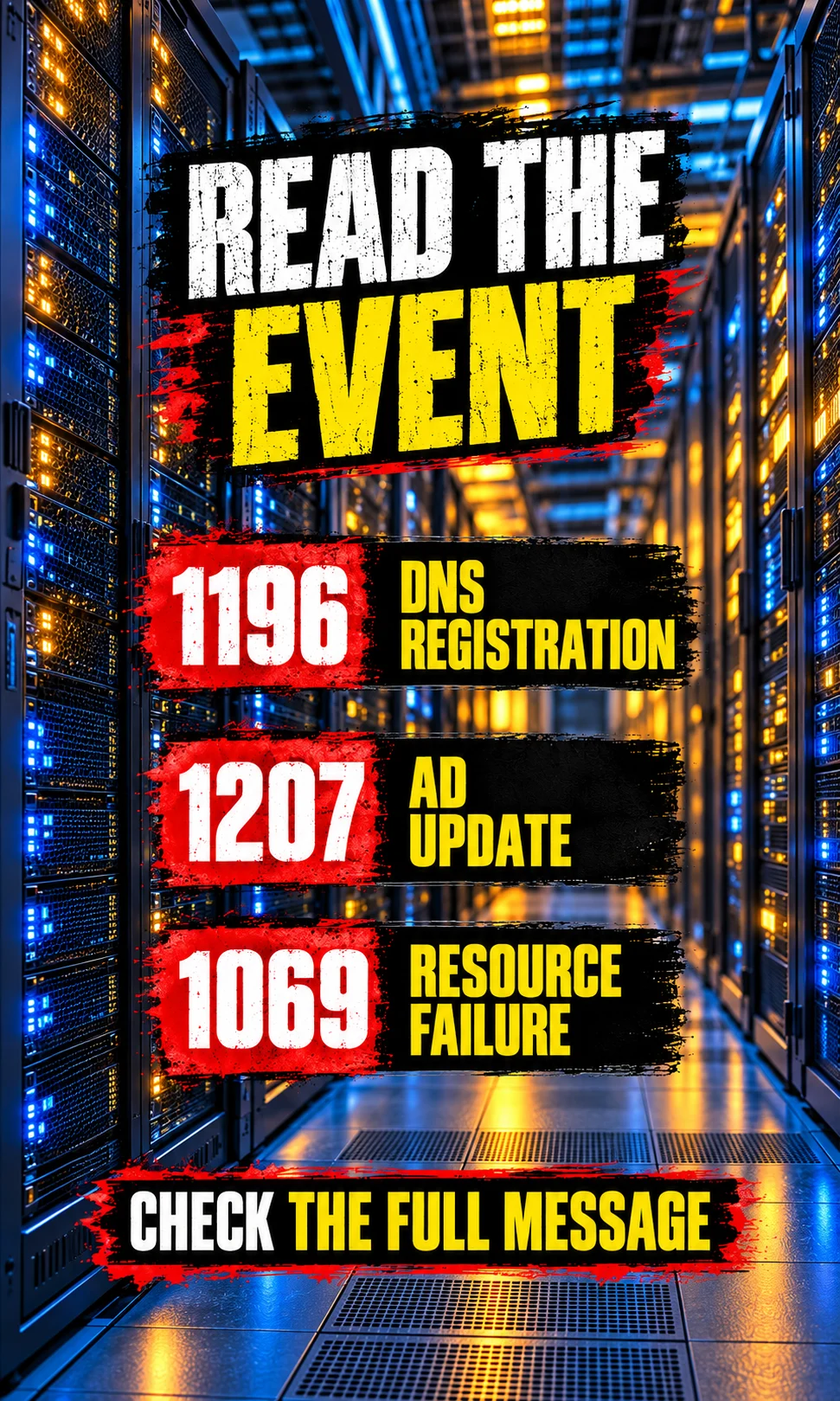
Start with the affected resource and the full event message, including its underlying error code and timestamp. Event 1069 reports a resource failure and does not identify a CNO problem by itself. Microsoft’s network-name troubleshooting checklist directs administrators to check AD permissions, DNS permissions, and related logs.
| Evidence | First investigation | Avoid |
|---|---|---|
| 1196 DNS registration failure |
Read the stated DNS error. Inspect zone reachability, existing record ownership, secure-update permissions, and the registering identity. | Changing AD OU permissions as the sole response to a DNS record ACL problem. |
| 1207 AD object could not be updated |
Check the affected CNO or VCO, effective access, writable domain controller connectivity, and the detailed error code. | Granting every node or every administrator broad domain rights. |
| 1069 Resource failure |
Identify the failing resource type and correlate nearby events and cluster logs. | Assuming every resource failure is caused by the cluster name. |
| Prestaged name already exists | Establish ownership and whether it is a live node, cluster, or role identity. | Disabling, renaming, or deleting an object without knowing its owner. |
| Creation works; a role name fails | Check the CNO’s OU computer-create rights or its Full Control on the prestaged VCO. | Repeating the installation-user grant and expecting it to fix role creation. |
Collect evidence before making identity changes. Get-ClusterLog can export a short troubleshooting window with local timestamps for correlation. Keep those files within your approved administrative workflow because logs may contain infrastructure names.
# Read-only evidence collection; run with required cluster access.
New-Item -ItemType Directory -Path 'C:\ClusterEvidence' -Force | Out-Null
Get-ClusterLog -Cluster 'AUS-CL01' -UseLocalTime -TimeSpan 15 `
    -Destination 'C:\ClusterEvidence'
Get-WinEvent -FilterHashtable @{
    LogName = 'System'
    ProviderName = 'Microsoft-Windows-FailoverClustering'
    Id = 1196,1207,1069
    StartTime = (Get-Date).AddHours(-2)
} | Select-Object TimeCreated,Id,Message
If object access is corrected but the CNO’s directory password needs recovery, review the documented Repair Active Directory Object action with the directory administrator. Treat it as a targeted recovery step, not a first response to any offline resource. Avoid manually resetting identity passwords or deleting DNS records until the failing operation and object owner are understood.
Check your deployment handoff
Use Cluster Identity Check to turn your confirmed setup facts into an ordered handoff checklist. It separates new-object preparation from post-creation faults and calls out which administrator should investigate next. It uses your selected answers only and cannot inspect AD, test DNS, execute commands, or certify the cluster.

Questions about prestaging cluster identities
Do I always need to prestage the CNO?
No. If the installation account has the required directory permissions, conventional cluster setup can create the CNO automatically. Prestage when your organization requires controlled object creation or the installer lacks those rights. Decide the permission path before running setup.
Can the prestaged CNO be in a different OU from the nodes?
A prestaged CNO can be placed in an approved OU chosen by the directory administrator. Automatic creation ordinarily follows the nodes’ OU or container, while prestaging lets you control the CNO’s location. Confirm delegation and role-object placement for the OU you actually use.
What permissions does the CNO need after cluster creation?
For automatically created role identities, the CNO needs permission to create computer objects in the role-object OU and sufficient read access. For separately prestaged VCOs, grant it Full Control on each approved VCO. These permissions belong to the CNO computer principal, not merely to the installation user.
Does this procedure apply to workgroup clusters or every Azure deployment?
No. This workflow assumes an AD-integrated cluster with a CNO; workgroup and AD-detached designs use different identity arrangements. Azure hosting alone does not determine whether a CNO is needed. Identify the administrative access point and workload design before applying the steps.
Is Exchange DAG prestaging the same as this example?
Do not reuse the generic installation-principal grant without checking Exchange requirements. Microsoft’s DAG procedure assigns Full Control to the first Mailbox server computer account or the Exchange Trusted Subsystem group where a CNO is used. DAGs without a cluster administrative access point do not use a CNO.
Can I rename the cluster by renaming its AD computer object?
Do not treat an AD-only rename as a complete cluster rename procedure. Cluster configuration, DNS, identity permissions, management references, and workload dependencies need coordinated review. Handle an existing cluster rename as a separate maintenance change with a recovery plan.
Decide the identity path before setup
For a new conventional domain cluster, prepare the disabled CNO and its installation-account access before creation. Choose automatic or individually prestaged VCOs according to your directory policy, then verify the cluster identity before adding roles. For a cluster that already exists, investigate the affected resource and error rather than repeating the new-object steps.